User guide

A little help. A lot to explore.

Get to know Pubbo, set up your companion and discover what it can do.

01
Get started
Meet Pubbo, connect and pair
02
System & controls
Understand states and gestures
03
AI features
Talk, scan and create
Getting to know Pubbo

Main unit

Get familiar with the main unit, ports and buttons.
Your companion, from every angle.

Your companion, from every angle.

Front
  • Microphone
  • Camera
  • Multi-color display
  • Wheels
Back
  • Speaker
  • Port A ยท Fast charging
  • Port B ยท Download / standard charging
Bottom
  • Run button
  • Power button
  • Stop button
First time here?

Choose Power & pairing in the directory to get started.
Getting to know Pubbo

Power & pairing

Power on your companion, connect to the app and complete activation.
01

Power on Pubbo

Charge Pubbo using the included Type-C cable and a 5V/2A power adapter. Press and hold the power button on the bottom for three seconds. A startup animation and chime will play.

Open the pairing flow
02

Open the pairing flow

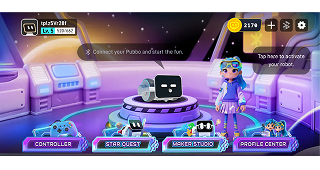
Scan the QR code on the Quick Start Card or search for โ€œPubboโ€ in your app store. Sign up and log in with your phone number. Tap โ€œGo to Pairโ€. If the prompt does not appear, tap โ€œTap here to activate your robot~โ€, then โ€œStart QR Scanโ€.

Start scanning
03

Start scanning

If the pairing prompt does not appear, open the activation entry and select Start QR Scan.

Good to know

For the first power-on, place Pubbo on a flat, clear surface away from edges. Pubbo may move during its startup self-test.

Getting to know Pubbo

Voiceprint

Help Pubbo recognize different family members and use their custom nicknames.
Open voice management
01

Open voice management

In the app, go to User Center and select your paired device. Tap โ€œAdd Voiceprintโ€.

Choose a nickname
02

Choose a nickname

Use the Voice Alias screen shown in the app to set the name Pubbo will use.

Good to know

Pubbo can identify different family members and call each person by their own custom nickname.

System & controls

Device states

Understand what Pubbo is doing by looking at its on-screen state.
Loading
01

Loading

Pubbo is preparing to wake up, generating a response, running a program, or preparing image and drawing results. It is workingโ€”just a moment!

Listening
02

Listening

Pubbo enters this state after you wake it up. The microphone stays open so you can keep talking.

Replying
03

Replying

Pubbo is speaking. Say the wake word to interrupt and return to Listening. It also returns to Listening automatically after it finishes speaking.

Good to know

In normal standby mode, Pubbo displays facial animations such as blinking and smiling.

System & controls

Status icons

Check battery, Wi-Fi, Bluetooth and audio status at a glance.

Battery

100%
BATTERY
100%
The battery is fully charged.
75%โ€“99%
BATTERY
75%โ€“99%
Battery level is between 75% and 99%.
50%โ€“74%
BATTERY
50%โ€“74%
Battery level is between 50% and 74%.
25%โ€“49%
BATTERY
25%โ€“49%
Battery level is between 25% and 49%.
Below 25%
BATTERY
Below 25%
Please charge your device soon.

Wi-Fi connection

Strong signal
WI-FI
Strong signal
Wi-Fi is connected; the platform connection works normally.
Medium signal
WI-FI
Medium signal
Wi-Fi is connected; the platform connection works normally.
Weak signal
WI-FI
Weak signal
Wi-Fi is connected; the platform connection works normally.
Disconnected
WI-FI
Disconnected
Wi-Fi is disconnected.
Platform connection issue
WI-FI
Platform connection issue
Wi-Fi is connected, but there is an issue with the platform connection.

Bluetooth, audio & platform

Connected
BLUETOOTH
Connected
Bluetooth is connected.
Disconnected
BLUETOOTH
Disconnected
Bluetooth is disconnected.
Muted
AUDIO
Muted
The device is muted.
Not connected
PLATFORM
Not connected
There is no connection to the smart-control platform.
Good to know

Tap anywhere on the standby screen to see the status bar. The right side shows connections, battery and mute status; the left side shows the time. It hides after three seconds of inactivity, or when you tap again.

System & controls

Low-power mode

Recognize the dimmed display and charging states while Pubbo saves energy.
Not charging
01

Not charging

Pubbo is in low-power mode and is not charging.

Charging ยท battery โ‰ค10%
02

Charging ยท battery โ‰ค10%

The low-power screen shows the first charging state.

Charging ยท battery โ‰ค25%
03

Charging ยท battery โ‰ค25%

The low-power screen shows the next charging state.

Good to know

After five minutes of inactivity, Pubbo dims the screen and enters low-power mode. Tap the screen to wake the device instantly.

System & controls

Gestures & navigation

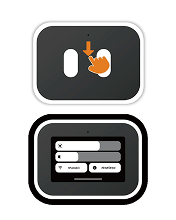
Swipe down for quick settings
01

Swipe down for quick settings

Pull down from the top of the screen. Move the sliders to adjust screen brightness and volume.

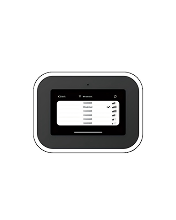
Manage Wi-Fi
02

Manage Wi-Fi

Tap the Wi-Fi option on the left to check your current network or connect to a new one.

View device details
03

View device details

Open About Device to see the device name, firmware version, Bluetooth name, activation QR code and language settings.

Good to know
AI features

Talking to Pubbo

Wake Pubbo, ask a question and keep the conversation going.
Say โ€œpubbo pubboโ€
01

Say โ€œpubbo pubboโ€

Use a clear voice to get Pubboโ€™s attention. The top-right corner shows that it is listening. Start speaking naturally.

Ask your question
02

Ask your question

Try โ€œWhatโ€™s the weather today?โ€ Your speech appears in a message bubble at the bottom of the screen.

Interrupt a reply

Say โ€œpubbo pubboโ€ again to stop the audio. Once Listening appears, ask your next question.

Keep talking

When Pubbo is ready to listen again, ask your next question. You do not need to repeat the wake word.

Good to know

After finishing a response, Pubbo keeps listening. After two minutes without speech, it returns to standby. Say the wake word again to continue.

AI features

Visual scan

Ask Pubbo to look
VOICE ยท 01

Ask Pubbo to look

Say โ€œpubbo pubboโ€, then ask โ€œWhat can you see ahead?โ€

Position your companion
VOICE ยท 02

Position your companion

Aim Pubbo at the subject before taking a photo.

Good to know

Place Pubbo where its camera has a clear view of the object you want it to recognize.

AI features

Image generation

Describe an idea and let Pubbo turn it into a picture.
Tell Pubbo what to draw
01

Tell Pubbo what to draw

Say โ€œPubbo, Pubboโ€, then describe the image you want. For example: โ€œDraw a cute clay-style kitten doll.โ€

Wait while it draws
02

Wait while it draws

While Pubbo is drawing, it cannot respond to you.

Good to know

Keep your description clear so Pubbo knows what you would like it to draw.

A little news. A lot to explore.

Get playful ideas, product news and new ways to create with Pubbo.